

 Flutter

Updated June 2026. Tested on Flutter 3.x and Dart 3. Part of the Techalyst Flutter series.
Maps, delivery tracking, nearby search, check-ins. The moment your app needs to know where the phone is, you need GPS, and in Flutter the geolocator package is the standard way to get it. The location call itself is one line. The real work, and where most bugs live, is doing the permissions properly so the app behaves on both platforms.
Setup
Add geolocator to your pubspec.yaml, then declare why you want location on each platform, because the OS will not give it to you otherwise. On iOS that is an NSLocationWhenInUseUsageDescription string in Info.plist. On Android it is the ACCESS_FINE_LOCATION permission in the manifest. The user sees your description text in the permission prompt, so make it honest.
Getting permission the right way
You cannot just ask for the location. First the device's location service has to be on, then your app needs permission, and permission has more than two states. Handling all of them is what separates an app that works from one that silently fails on some phones:
Future<Position> getCurrentLocation() async {
  // Is location even turned on for the device?
  final serviceEnabled = await Geolocator.isLocationServiceEnabled();
  if (!serviceEnabled) {
    throw Exception('Location services are turned off.');
  }

  // What permission do we have?
  var permission = await Geolocator.checkPermission();
  if (permission == LocationPermission.denied) {
    permission = await Geolocator.requestPermission();
    if (permission == LocationPermission.denied) {
      throw Exception('Location permission was denied.');
    }
  }

  if (permission == LocationPermission.deniedForever) {
    throw Exception('Location permission is permanently denied. Enable it in Settings.');
  }

  return Geolocator.getCurrentPosition();
}
The case people forget is deniedForever. Once a user picks "never", the system will not show the prompt again, so requesting does nothing. The right move is to tell them to enable it in Settings, which Geolocator.openAppSettings() can take them to.
Reading the position
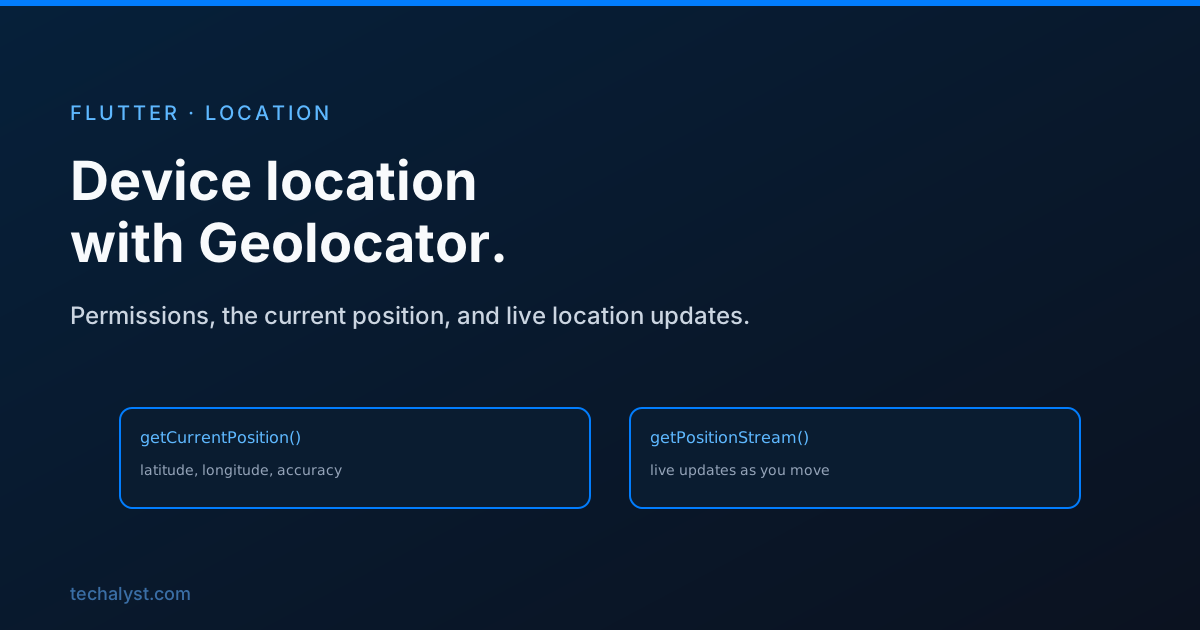
getCurrentPosition gives you a Position with everything you need:
final position = await getCurrentLocation();
print('Lat: ${position.latitude}, Lng: ${position.longitude}');
print('Accuracy: ${position.accuracy} metres');
You can ask for more or less accuracy, which trades precision against battery and speed:
Geolocator.getCurrentPosition(
  locationSettings: const LocationSettings(accuracy: LocationAccuracy.high),
);
Use high for navigation, something lower like balanced when a rough area is enough, since high accuracy keeps the GPS radio busy.
Live updates as the user moves
For tracking, you do not poll, you listen. getPositionStream is a Stream<Position> that emits a new position as the device moves, which slots straight into the patterns from streams and StreamBuilder:
final stream = Geolocator.getPositionStream(
  locationSettings: const LocationSettings(
    accuracy: LocationAccuracy.high,
    distanceFilter: 10, // only emit after moving 10 metres
  ),
);

final subscription = stream.listen((position) {
  // update the map marker
});
distanceFilter keeps it from firing on tiny jitters. Remember to cancel the subscription when you are done, the same cleanup rule as any stream.
Measuring distance
A common follow-up is "how far is this from that". Geolocator has a helper so you do not hand-roll the haversine formula:
final metres = Geolocator.distanceBetween(
  startLat, startLng, endLat, endLng,
);
Wrapping up
Location in Flutter is straightforward once the permission dance is right. Check that the service is on, request permission, and handle the deniedForever case by sending the user to Settings rather than asking again. Then getCurrentPosition gives you a single fix, getPositionStream gives you live updates with a distanceFilter to keep it sane, and distanceBetween measures gaps for you. Pair the future with FutureBuilder or the stream with StreamBuilder and the location feature builds itself.


All comments ()
No comments yet
Be the first to leave a comment on this post.