

 Vue.js

Updated June 2026. Tested on Vue 3 with
<script setup>. Part of the Techalyst Vue 3 series.
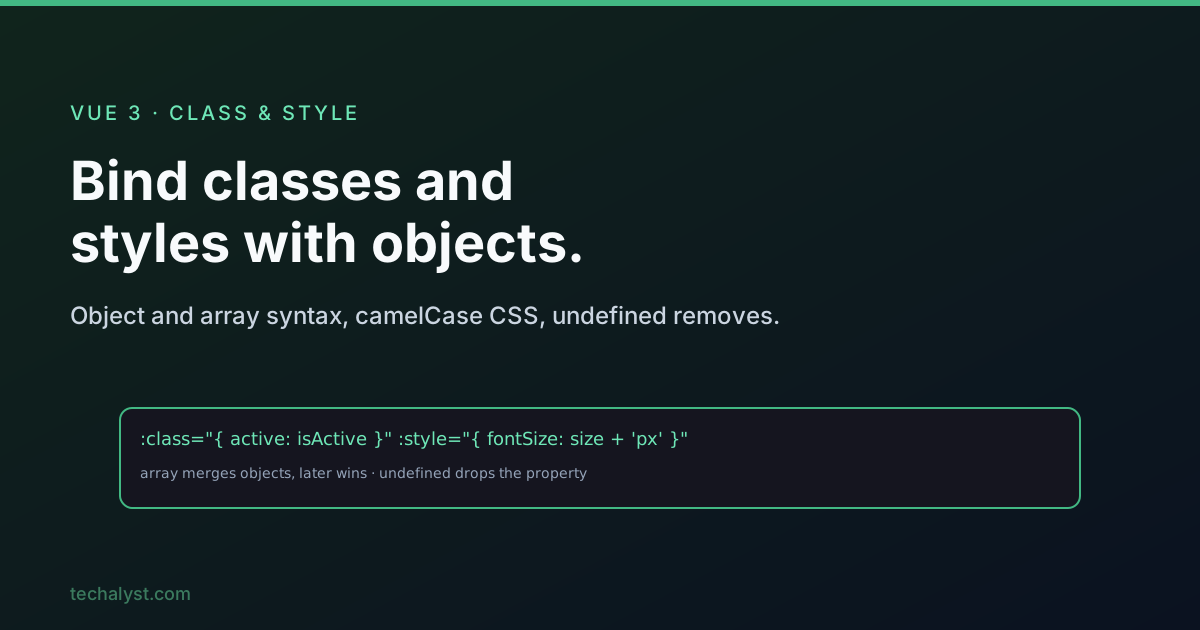
Vue gives class and style special treatment when you bind them with :. Instead of forcing you to build a string by hand, it accepts objects and arrays and figures out the final attribute for you. Get comfortable with both syntaxes and conditional styling stops being fiddly.
Binding classes: object syntax
The object form maps class names to booleans. A truthy value applies the class, a falsy one drops it.
<script setup>
import { ref } from 'vue'

const isActive = ref(true)
const hasError = ref(false)
</script>

<template>
  <div :class="{ active: isActive, 'text-danger': hasError }">...</div>
</template>
Use quotes around class names that contain a dash. Because the value is reactive, flipping isActive re-applies the class with no extra wiring.
You can also hand :class a whole object stored in state, which is tidy when several toggles travel together:
<script setup>
import { reactive } from 'vue'

const theme = reactive({ 'bg-dark': true, 'text-light': true })
</script>

<template>
  <div :class="theme">...</div>
</template>
Binding classes: array syntax
The array form lists classes to apply, either as literal strings or as references to state.
<script setup>
import { ref } from 'vue'

const activeBg = ref('bg-dark')
const activeText = ref('text-light')
</script>

<template>
  <div :class="[activeBg, activeText]">...</div>
</template>
And the two syntaxes nest, an object inside an array covers conditional classes alongside fixed ones:
<div :class="[{ active: isActive }, baseClass]">...</div>
A handy detail: a bound :class and a plain static class on the same element merge, they do not fight. So class="card" plus :class="{ active: isActive }" gives you card active when active.
| Syntax | Example | Use when |
|---|---|---|
| Inline object | :class="{ active: isActive }" |
Toggle a class on a condition |
| Whole object | :class="theme" |
Group several toggles in state |
| Array of strings | :class="['a', 'b']" |
Fixed list of classes |
| Array + object | :class="[{ active: isActive }, base]" |
Mix conditional and fixed |
Binding inline styles
:style takes an object too, but with one firm rule: CSS property names use camelCase, because dashes are illegal in JavaScript keys.
<script setup>
import { ref } from 'vue'

const bgColor = ref('#ff6600')
</script>

<template>
  <div :style="{ backgroundColor: bgColor, fontSize: '16px' }">...</div>
</template>
So background-color becomes backgroundColor and font-size becomes fontSize. Size values are strings and must carry their unit ('16px', not 16).
Group many properties into a state object and bind that:
<script setup>
import { reactive } from 'vue'

const styleObject = reactive({
  backgroundColor: 'lightblue',
  color: 'white',
  fontSize: '16px',
})
</script>

<template>
  <div :style="styleObject">...</div>
</template>
Merging styles with array syntax
You cannot put two :style attributes on one element, the second silently overrides the first. The fix is array syntax, which merges several style objects, and later entries win on conflict.
<script setup>
import { reactive, ref } from 'vue'

const styleObject = reactive({ backgroundColor: 'lightblue', color: 'white' })
const fontSize = ref(16) // a number, so we can do maths on it
</script>

<template>
  <div :style="[styleObject, { fontSize: fontSize + 'px' }]">...</div>
  <button @click="fontSize++">Bigger</button>
  <button @click="fontSize--">Smaller</button>
</template>
Storing the size as a number lets you increment it, then you append 'px' in the binding. Put any override object last in the array and it takes precedence over everything before it.
Removing a style with undefined
One clean trick: set a style value to undefined and Vue removes that property entirely rather than rendering an empty value. That makes conditional styling a one-liner ternary.
<span :style="{ color: isSelected ? 'tomato' : undefined }">
  {{ city }}
</span>
When isSelected is false the color property simply is not applied, so the element falls back to whatever the stylesheet says.
Putting it together
Class and style bindings shine in list rendering, where you style rows based on data. Here is the common highlight-on-select pattern, combining v-for, checkbox v-model, and conditional class and style:
<script setup>
import { ref } from 'vue'

const cities = ref(['London', 'Paris', 'Tokyo', 'Berlin'])
const selected = ref([])
</script>

<template>
  <ul>
    <li
      v-for="(city, index) in cities"
      :key="city"
      :class="{ even: index % 2 === 0, selected: selected.includes(city) }"
    >
      <input type="checkbox" :value="city" v-model="selected" />
      <span :style="{ color: selected.includes(city) ? 'tomato' : undefined }">
        {{ city }}
      </span>
    </li>
  </ul>
</template>
Wrapping up
For classes, reach for object syntax to toggle on conditions and array syntax for fixed lists, and lean on the fact that static and bound classes merge. For styles, remember camelCase keys, keep size values as numbers when you need maths and append the unit in the binding, merge multiple objects with array syntax where later wins, and use undefined to drop a property cleanly. For anything more elaborate, compute the class or style object in a computed property and keep the template tidy.
More in the series: Vue 3 directives explained and Tailwind utility-first styling. Questions welcome below.


All comments ()
No comments yet
Be the first to leave a comment on this post.